If you want to monetize your streaming channel on Twitch, there are several steps to that, but the main factor you have to take care of is gathering an audience that regularly views your streams. For this purpose, you are advised to interact with other streamers to broaden your viewership and support. You can connect with people from all over the world on this platform and add them as friends to chat with them on Twitch platform.
By adding people as your friends, you will be able to:
- send a whisper notification to them.
- See whether they are active or not.
- Know when are they are watching the streaming of other streamers.
- Or get notified when they are streaming.
You may follow these thoroughly detailed steps for your ease to find friends on Twitch:
How to Add Twitch Friends on Twitch using the Web or PC
Step-1: Open the twitch website through your browser. 
Step-2: Provide your credentials like your username and password to log in to your account. 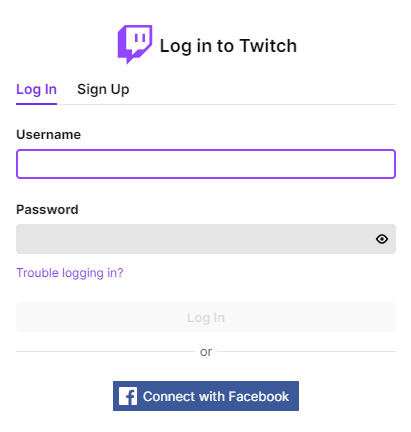
Step-3: On your screen, on your profile’s left side navigation, you will see a list of your friends and other members suggested by the organizers. (These people are recommended based on which people you have interacted with within the previous days.)
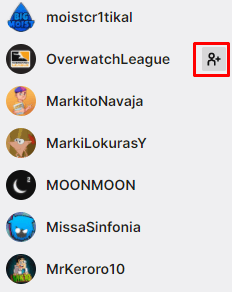 Step-4: You will see a Join option or an icon with an addition (+) symbol with the name. Just click on this icon, and your friend request will be sent. Once the other person accepts your request, he will be added to your friend list.
Step-5: You can also search for people of your own choice by entering their names in the search bar that appears at the bottom of your friend’s list. Every profile with that name will appear, and hence you can send a request to the desired person. 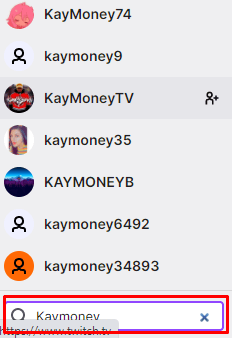
How to remove friends on Twitch through Web or PC
Though If you are finding someone offensive or, for some reason, you want to unfriend a person, you need to follow these steps:
Step-1: Open your browser and sign in to your account.Step-2: From your friend’s list that appears on the left side, you can click on their name, and a small rectangle appears with options names as friends, follow and whisper.  Step-3: Click on the option that says, “Friends,” and as you move your cursor over it, the color changes to red, and it says, ‘Unfriend.’ Click on it, and that member will be unfriended.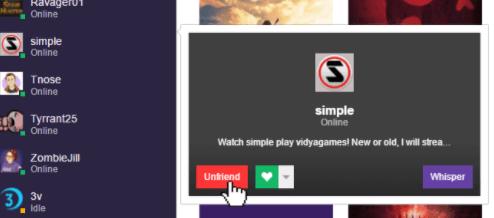
Related: How to Make Someone VIP on Twitch
How to block someone on Twitch
While using the Twitch browser, you will find a stream-chat space on the right side of your screen. You can select any name from that chat section. A rectangle with little information about that user will appear. By clicking on the symbol of three vertically-aligned dots on that info box’s right side, you can block that member or report him/her. That blocked person will not be able to message or watch the stream until you are a moderator on the channel.
How to appear offline on Twitch through PC
On Twitch, you may be online, but other members and friends can see your active status. Here is a quick procedure to enjoy this feature:
Step-1: Sign in to your account. Step-2: You will see a symbol on the right of your name on your profile.  Step-3: Clicking on this symbol will show you the options of “Online“.Step-4: Now click on the toggle button to appear offline.
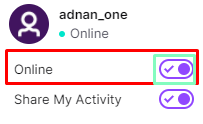 Step-5: After clicking the button, your profile’s mode will be changed to offline.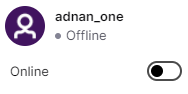
How to Add Friends on Twitch on Android, iPhone, or iPad
Adding friends to your twitch account is way more comfortable if you are an android, iPhone, or iPad user. All you need to do is:
- Download the Twitch mobile application from your play store or apple store.
- Sign in to this application by entering your username and password.
You can find people in the chat section of the live stream:
- By clicking on the discover tab, choose any live stream that appears on your screen.
- From the chat of that stream, you can find a variety of people. Tap on any name that appears in the chat section, and you will be shown some options.
- Click on ‘Friend,’ and a friend request will be sent on your behalf. A short message ‘Friend Request Pending‘ will appear on your screen as a confirmatory sign.
You can also search people by this method:
Step-1: Tap on the chat/whisper icon available on the top right corner of your mobile’s screen. 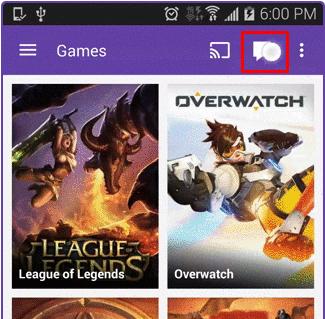 Step-2: Now, tap on the purple plus symbol on the top.
 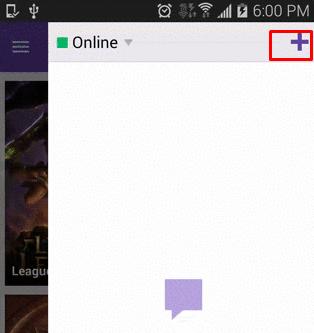 Step-3: Write the username in the space provided under the title ‘New Whisper.’
 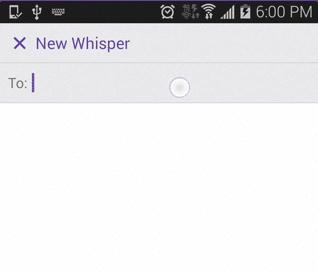 Step-4: You will be shown profiles of users with those names. Click on the one you wanted to find.
 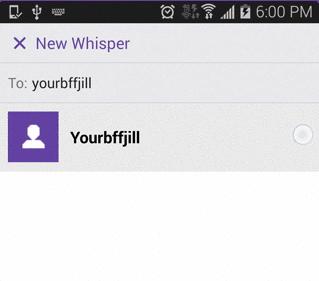 Step-5: Just beside that person’s name is an icon with the plus sign. Send a friend request to him through it, and a message will appear at the bottom of your screen, which says, “Friend Request Sent.”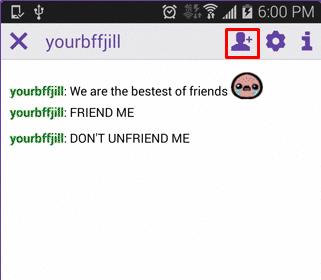
How to remove friends on Twitch on Android, iPhone, or iPad
Here is the method to unfriend unwanted people from your friends’ list:
Step-1: From the whisper section of your Twitch profile, you can view your chats and the online people. Step-2: Tap on the friend’s name whom you want to unfriend.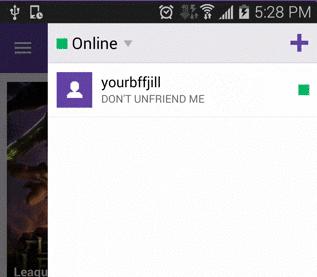 Step-3: On the conversation screen, there will be a gear-like icon on the top right corner. Tapping on it will show some options.
 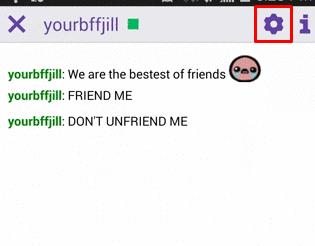 Step-4: From there, you can select “Unfriend.” It will ask again for surety, and once you choose ‘ok,’ the person will be unfriended.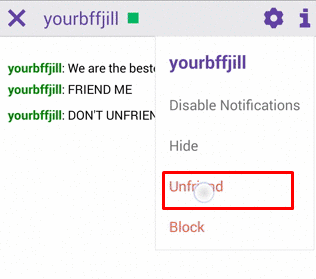
How to Appear Offline (For Mobile)
Step-1: Tap on the rectangular icon that takes you to the whisper section. Step-2: It’s written ‘Online‘ with a green, small-square icon on the screen’s top-left corner. Tap on it. A tray appears with options of online and invisible.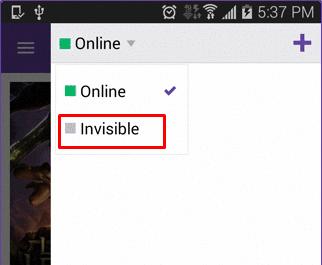 Step-3: To reverse this, you can proceed in the same way to change your active status.
How to prevent people from sending you whisper:
Go to the whisper option from your profile, and by taping on the settings cog, you will get two options: ‘Do not disturb‘ and ‘Mark all whispers as read.’ Select the former one to prevent people from whispering to you.
How to disable notifications on Twitch:
Suppose you don’t want to receive notifications from a particular member in your whisper section but stay online. In that case, you can do it by tapping on the settings icon of that conversation, and from the available options, select ‘Disable Notifications.’ You won’t be notified next time when that person messages. In this way, somehow, you can customize your chats. To turn on notifications, you can again change the conversation settings, but you will see an ‘Enable Notifications’ option this time.